Importing tariff400ng data for the year
Related PRs
For reference, here are the PRs from previous year's imports:
- 2018 data load (multiple PRs): 338, 382, 1286, 1313
- 2019 data load (multiple PRs): 2036, 2060
- 2020 data load: Note that this one is different than the others because
it doesn't use
uuid_generate_v4(to keep UUIDs the same across all environments)
Tables that need to be updated with the new data
tariff400ng_full_pack_ratestariff400ng_full_unpack_ratestariff400ng_linehaul_ratestariff400ng_service_areastariff400ng_shorthaul_ratestariff400ng_item_ratestariff400ng_zip3s: This table is not scoped by date like the others above, but you should try to sync it up with the spreadsheet in case any zips or service areas have changed.
Obtain yearly rates xlsx file from USTRANSCOM
- Visit: https://www.ustranscom.mil/dp3/hhg.cfm (for some reason, I had to load hit this url twice... the first visit redirected to another page).
- Look under “Special Requirements and Rates Team” -> “Domestic” -> “400NG Baseline Rates” and download yearly rate file.
- Copy the file to USTC MilMove Google drive: USTC MilMove -> Data -> Rate Engine pre GHC
Importing full_packs, full_unpacks, linehauls, service_areas, and shorthauls
Extract data from xlsx file via Ruby scripts
Clone the Truss fork of the move.mil repository
Run
bin/setupon the command line and make sure there were no errors in populating the seed data.Add the new
xlsxfile to thelib/datadirectory in the following format:{YEAR} 400NG Baseline Rate.xlsx.Open
db/seeds.rbNear the bottom of the file, you'll see some commented code that imports baseline rates for previous years. Add the following and change the date range as needed:
puts '-- Seeding 2020 400NG baseline rates...'
Seeds::BaselineRates.new(
  date_range: Range.new(Date.parse('2020-05-15'), Date.parse('2021-05-14')),
  file_path: Rails.root.join('lib', 'data', '2020 400NG Baseline Rates.xlsx')
).seed!
Run
rails db:resetto drop the database, re-run migrations, and re-run the seeds import. You may want to run Postgres on a different port than the default (5432) if you want to have your milmove DB up at the same time.Dump the tables:
pg_dump --inserts -t full_packs -t full_unpacks -t linehauls -t service_areas -t shorthauls --no-owner --no-tablespaces move_mil_development > 400ng_temp_tables.sql. Add in-p <port>if you used a different port for Postgres.
Load dumped tables into local database
Given that we want to predetermine the UUIDs for all inserted rows, we will use our local dev_db as a staging
area for the import, then use pg_dump to create the migration after we're done with all transformations.
Setup local database
- Go to your local
milmoveclone. - Reset your local database:
make db_dev_reset db_dev_migrate. - Drop the contents of the tariff tables we're going to be importing (so we can later
pg_dumptheir entire contents):- Run
psql-dev - In psql, run:
truncate tariff400ng_full_pack_rates, tariff400ng_full_unpack_rates, tariff400ng_item_rates, tariff400ng_linehaul_rates, tariff400ng_service_areas, tariff400ng_shorthaul_rates;
- Run
- Import the data you dumped from the Ruby-generated database by doing:
\i path/to/400ng_temp_tables.sql- If the above command fails with an "unrecognized configuration parameter", try commenting out the corresponding
SETline near the top of the SQL file. You may have a mismatch between the Postgres version used for the export and the one used for the import.
- If the above command fails with an "unrecognized configuration parameter", try commenting out the corresponding
- You should now have both the MilMove
tariff400ng_*tables (empty) as well as the new temp tables generated above.
Transform to our schema
The next phase is to transform the temporary tables into the format expected by our tariff400ng_* tables.
To do so, you can run the script below. Save it as tariff400ng_cleanup.sql and run it in psql: \i tariff400ng_cleanup.sql
-- Pack rates
INSERT INTO tariff400ng_full_pack_rates
SELECT
    uuid_generate_v4() as id,
    schedule,
    LOWER(weight_lbs) as weight_lbs_lower,
    UPPER(weight_lbs) as weight_lbs_upper,
    CAST((rate * 100) as INTEGER) as rate_cents,
    LOWER(effective) as effective_date_lower,
    UPPER(effective) as effective_date_upper,
    created_at,
    updated_at
FROM full_packs;

-- Unpack rates
INSERT INTO tariff400ng_full_unpack_rates
SELECT
    uuid_generate_v4() as id,
    schedule,
    CAST((rate * 100000) as INTEGER) as rate_millicents,
    LOWER(effective) as effective_date_lower,
    UPPER(effective) as effective_date_upper,
    created_at,
    updated_at
FROM full_unpacks;

-- Linehaul
INSERT INTO tariff400ng_linehaul_rates
SELECT
    uuid_generate_v4() as id,
    LOWER(dist_mi) as distance_miles_lower,
    UPPER(dist_mi) as distance_miles_upper,
    LOWER(weight_lbs) as weight_lbs_lower,
    UPPER(weight_lbs) as weight_lbs_upper,
    CAST((rate * 100) as INTEGER) as rate_cents,
    LOWER(effective) as effective_date_lower,
    UPPER(effective) as effective_date_upper,
    CAST(type as TEXT) as type,
    created_at,
    updated_at
FROM linehauls;

-- Service areas
INSERT INTO tariff400ng_service_areas
SELECT
    uuid_generate_v4() as id,
    service_area,
    name,
    services_schedule,
    CAST((linehaul_factor * 100) as INTEGER) as linehaul_factor,
    CAST((orig_dest_service_charge * 100) as INTEGER) as service_charge_cents,
    LOWER(effective) as effective_date_lower,
    UPPER(effective) as effective_date_upper,
    created_at,
    updated_at
FROM service_areas;

-- Shorthauls
INSERT INTO tariff400ng_shorthaul_rates
SELECT
    uuid_generate_v4() as id,
    LOWER(cwt_mi) as cwt_miles_lower,
    UPPER(cwt_mi) as cwt_miles_upper,
    CAST((rate * 100) as INTEGER) as rate_cents,
    LOWER(effective) as effective_date_lower,
    UPPER(effective) as effective_date_upper,
    created_at,
    updated_at
FROM shorthauls;
At this point, stop to spot check that all tariff400ng_* tables have the number of records that
you would expect based on the contents of the Ruby-generated tables as well as the source spreadsheet.
Add additional sit data to tariff400ng_service_areas table
The extracted data from the Ruby scripts doesn't contain all the data we need.
We also need 185A SIT First Day & Whouse, 185B SIT Addl Days, and SIT PD Schedule
found on the Geographical Schedule sheet.
Adding data
From the Geographical Schedule sheet, copy the service area number, 185A, 185B, and SIT PD Schedule columns and
transform it into the SELECT statements in the template below. Save this completed template to a
tariff400ng_fix_service_areas.sql file.
CREATE FUNCTION update_sit_rates(
    service_area_number text,
    sit_185a_rate_cents integer,
    sit_185b_rate_cents integer,
    sit_pd_schedule integer
) RETURNS void language plpgsql AS $$
BEGIN
    UPDATE tariff400ng_service_areas
    SET
        sit_185A_rate_cents = $2,
        sit_185B_rate_cents = $3,
        sit_pd_schedule = $4
    WHERE tariff400ng_service_areas.service_area = $1
      AND tariff400ng_service_areas.effective_date_lower = '2020-05-15';
END $$;

SELECT update_sit_rates('4', 2004, 070, 2);
SELECT update_sit_rates('8', 1538, 048, 2);
-- More rows here

DROP FUNCTION update_sit_rates;
A few notes:
- There are many ways to do this transformation depending on your preferred tools. One way is to download a CSV from
the
Geographical Schedulesheet, load that into Numbers locally, then just copy the four columns of interest to GoLand. Then, you can use GoLand to search and replace using a regex to transform it to the needed format. Example regex search and replace:^([0-9]+)\t+\$([0-9]+)\.([0-9]+)\t+\$([0-9]+)\.([0-9]+)\t+([0-9])toSELECT update_sit_rates('$1', $2$3, $4$5, $6); - Note that the rates in the document are in dollars, but we store the rates in cents in our
tariff400ng_service_areastable, so make sure you adjust accordingly. - Run this sql file with psql by either doing
psql-dev < tariff400ng_fix_service_areas.sqlor (if already in psql)\i tariff400ng_fix_service_areas.sql.
Spot check the tariff400ng_service_areas table to make sure the data is as expected.
Importing item_rates
Transform data from xlsx file
We're going to make use of the work that Patrick Stanger delivered in this PR.
- Open this google sheet alongside the 400ng data you have received for the upcoming year.
- Visit the
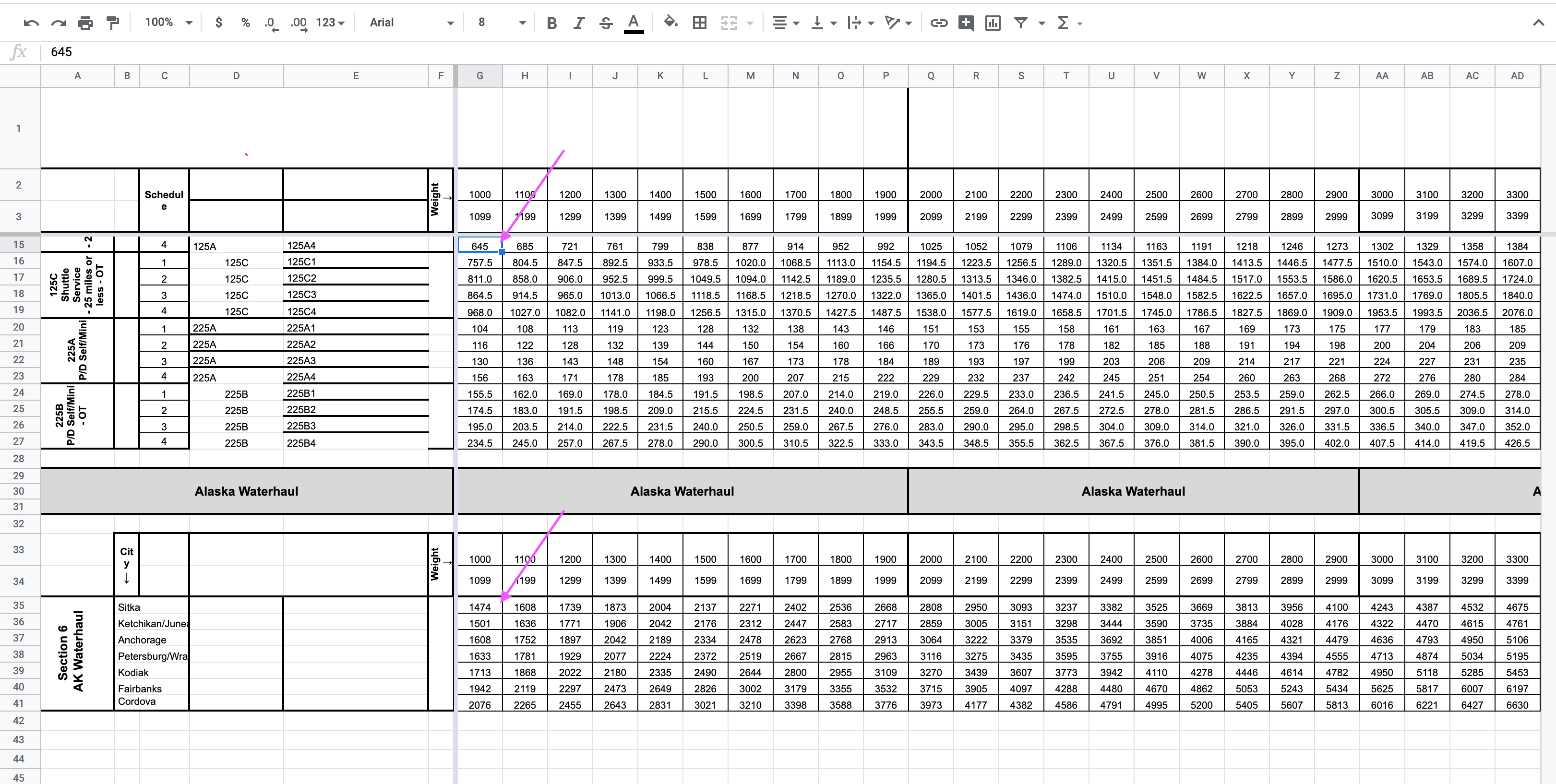
Accessorialstab in both spreadsheets. - In the new data sheet, within the main section and the Alaska waterhaul section, copy all the values to the left of where it says "weight". Start with the cells marked in the screenshot below:
- Paste those values into the corresponding
Accessorialstab in the other sheet. - Repeat this same process for the
Additional Ratestab. Starting at the cell marked in the screenshot below: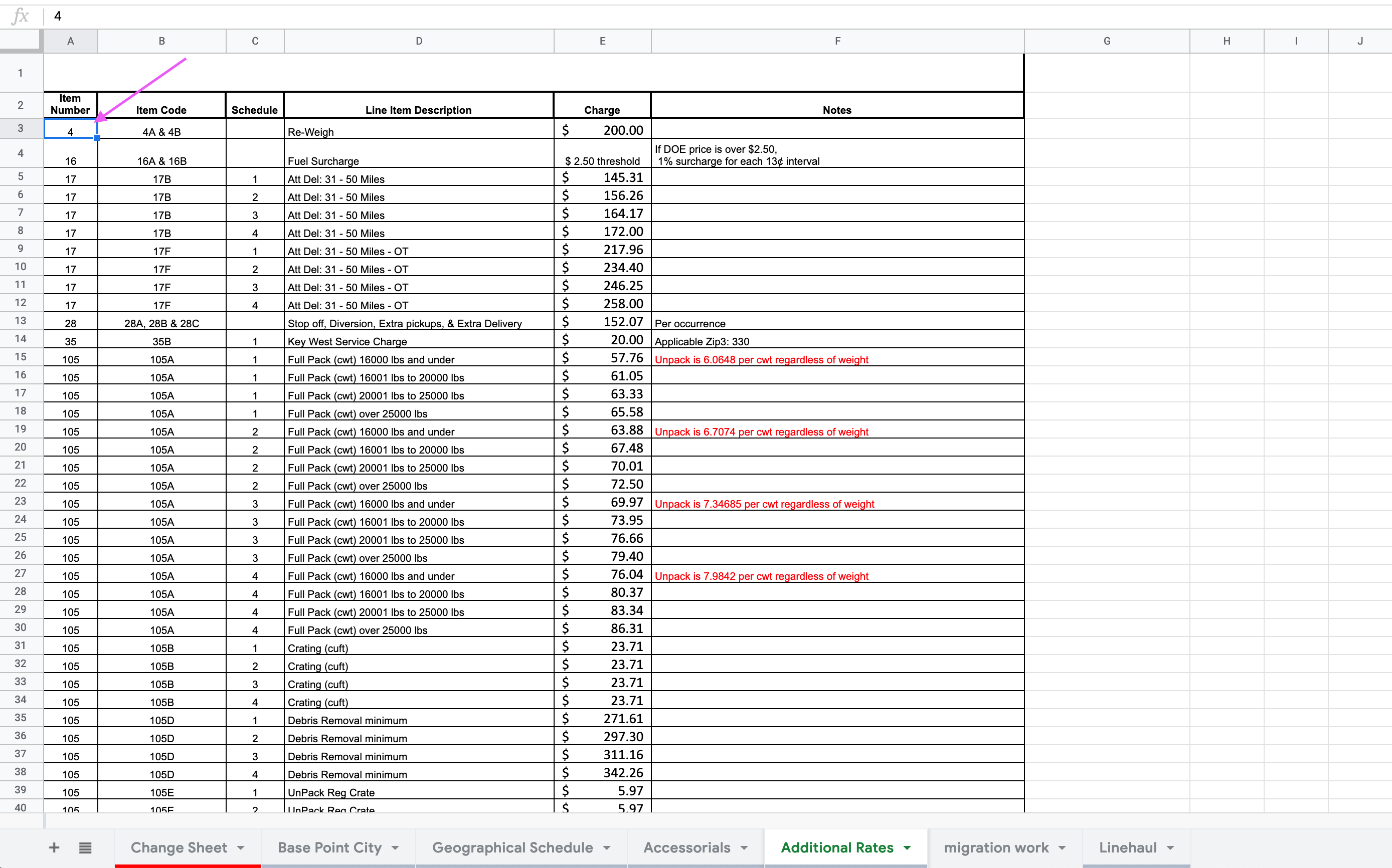
- Head over to the
migration worktab. Here, you'll find that queries have been generated for you to insert records into themilmovedatabase. - Change the
effective_date_lowerandeffective_date_upperin row 2 to be the correct dates. - Copy all of the values in the
querycolumn for both theAdditional Ratestable at the top of the sheet and theAccessorialstable below it to a file calledtariff400ng_item_rates.sql. A few rows may have "#REF!" errors due to 125B/125D no longer being included on theAccessorialstab unlike previous years; you should skip those. - Run
tariff400ng_item_rates.sqlagainst your local database as you've done with other SQL files.
Spot check the tariff400ng_item_rates table to make sure the data is as expected.
Fix certain item rates. Update weight_lbs_lower and update rate_cents for specific codes
There are a few item rates whose values are not correctly interpreted correctly by the spreadsheet. These can be fixed by running this SQL script against your local database (alternatively, you could address this in the spreadsheet prior to inserting it into the database):
-- These charges are subject to a min of 1,000lbs, so that rate should apply to weights < 1,000 also
UPDATE tariff400ng_item_rates
SET weight_lbs_lower = 0
WHERE weight_lbs_lower = 1000
  AND code IN ('125A', '125C', '210A', '210D', '225A', '225B')
  AND effective_date_lower = '2020-05-15';

-- These rates were assumed to be listed in cents but they were in dollars, though they were already scaled by 10
-- because they contained decimal values
UPDATE tariff400ng_item_rates
SET rate_cents = rate_cents * 10
WHERE code IN ('125C', '210D', '225B')
  AND effective_date_lower = '2020-05-15';

-- These rates were assumed to be listed in cents but they were in dollars
UPDATE tariff400ng_item_rates
SET rate_cents = rate_cents * 100
WHERE code IN ('125A', '210A', '225A')
  AND effective_date_lower = '2020-05-15';
Spot check the tariff400ng_item_rates table to make sure the data is as expected after these fixes.
Prepare the migration
Now we should have all the data imported, transformed, and cleaned. We can now dump the appropriate tables that will ultimately become our migration:
pg_dump -t tariff400ng_full_pack_rates -t tariff400ng_full_unpack_rates -t tariff400ng_item_rates -t tariff400ng_linehaul_rates -t tariff400ng_service_areas -t tariff400ng_shorthaul_rates --no-owner --no-tablespaces -h localhost -U postgres -W --data-only dev_db > new_2020_400ng_data.sql
Create a new migration using the usual process and copy this data into it.
Note that we use the COPY mechanism here to insert rows into the database -- this is much faster than INSERT on
large data sets.
Sync zip3s and service areas
The Base Point City tab of the 400NG spreadsheet contains zip3s, service areas, and base point cities/states.
Using your preferred tools, compare this data against the current state of the tariff400ng_zip3s table to see if
any corrections/additions/deletions need to be made.
This query may be helpful in getting the current table into a format that's similar to the spreadsheet to make diffs easier:
select basepoint_city, state, service_area, string_agg(zip3, ',' order by zip3)
from tariff400ng_zip3s
group by basepoint_city, state, service_area
order by basepoint_city;
If there are any changes to be made, make a separate migration to address and include in your PR.
Run your new migration(s)
Now we can test out our migration(s) by resetting and migrating our local database.
If you want to be able to get back to the current state of your database,
consider using our db-backup script to make a backup before you begin (db-restore can restore it later).
Once you're ready, run make db_dev_reset db_dev_migrate and make sure it completes successfully.
Spot check for correct data
Ensure the data loaded looks correct by checking a count of row numbers grouped by date.
select effective_date_lower, effective_date_upper, count(*) from tariff400ng_full_pack_rates group by effective_date_lower, effective_date_upper order by effective_date_lower DESC;select effective_date_lower, effective_date_upper, count(*) from tariff400ng_full_unpack_rates group by effective_date_lower, effective_date_upper order by effective_date_lower DESC;select effective_date_lower, effective_date_upper, count(*) from tariff400ng_item_rates group by effective_date_lower, effective_date_upper order by effective_date_lower DESC;select effective_date_lower, effective_date_upper, count(*) from tariff400ng_linehaul_rates group by effective_date_lower, effective_date_upper order by effective_date_lower DESC;select effective_date_lower, effective_date_upper, count(*) from tariff400ng_service_areas group by effective_date_lower, effective_date_upper order by effective_date_lower DESC;select effective_date_lower, effective_date_upper, count(*) from tariff400ng_shorthaul_rates group by effective_date_lower, effective_date_upper order by effective_date_lower DESC;
Also, look at the data in the context of previous year's data to see if the format/trends look reasonable:
select * from tariff400ng_full_pack_rates order by weight_lbs_lower, schedule, effective_date_lower;select * from tariff400ng_full_unpack_rates order by schedule, effective_date_lower;select * from tariff400ng_item_rates where schedule is null order by code, schedule, weight_lbs_lower, effective_date_lower;select * from tariff400ng_item_rates where schedule is not null order by code, schedule, weight_lbs_lower, effective_date_lower;select * from tariff400ng_linehaul_rates order by distance_miles_lower, weight_lbs_lower, type, effective_date_lower;select * from tariff400ng_service_areas order by service_area, effective_date_lower;select * from tariff400ng_shorthaul_rates order by cwt_miles_lower, effective_date_lower;
Test
- Deploy branch in
experimental. - Create a move for a date that is between the
effective_date_lowerandeffective_date_upper. - Watch the console and ensure the app doesn't throw any errors.